Retrieval
Overview
Retrieval answers a single question: given a natural-language query, which passages from your indexed documents are most relevant? Its output is what the AI Assistant and Agentic Workflows feed into the language model as grounded context — replacing a generic answer with one based on your material.
You don't invoke retrieval directly. It runs as part of normal Assistant and workflow operation. What you control is the scope of what retrieval can see (collections, subcollections, tags) and what you see in the chat — Arcanna renders each retrieval call inline as a tool card, with clickable links straight back to the source documents.
How retrieval works
When a query comes in, Arcanna runs it through three steps:
-
Understand the query. The query is converted into a numerical representation using the same model that indexed your documents, so query and documents live in the same semantic space.
-
Find candidate passages. Arcanna searches the index with two complementary techniques at once:
- Keyword search — catches exact-term matches: acronyms, product names, error codes, identifiers, anything that appears literally in the document but may not match semantically.
- Semantic search — catches paraphrases, synonyms, and conceptually related passages that keyword search would miss.
The results are merged into a single ranked list. This hybrid approach is consistently more accurate than either technique alone.
-
Refine the ranking. On systems with a GPU, Arcanna runs the top candidates through a second, more precise relevance model. Passages below a quality threshold are dropped; the rest are returned in order of relevance. On CPU-only deployments this step is skipped to keep responses interactive — see CPU vs GPU tradeoffs.
The four retrieval tools
Retrieval is exposed as four tools — small, well-defined functions that the Assistant and workflow agents can call. Each tool has a specific job, and each one renders inline in the chat as a tool card while it runs. Every row in those cards is a hyperlink back to the source: clicking it opens a side drawer with the original PDF, Word file, or whatever was uploaded.
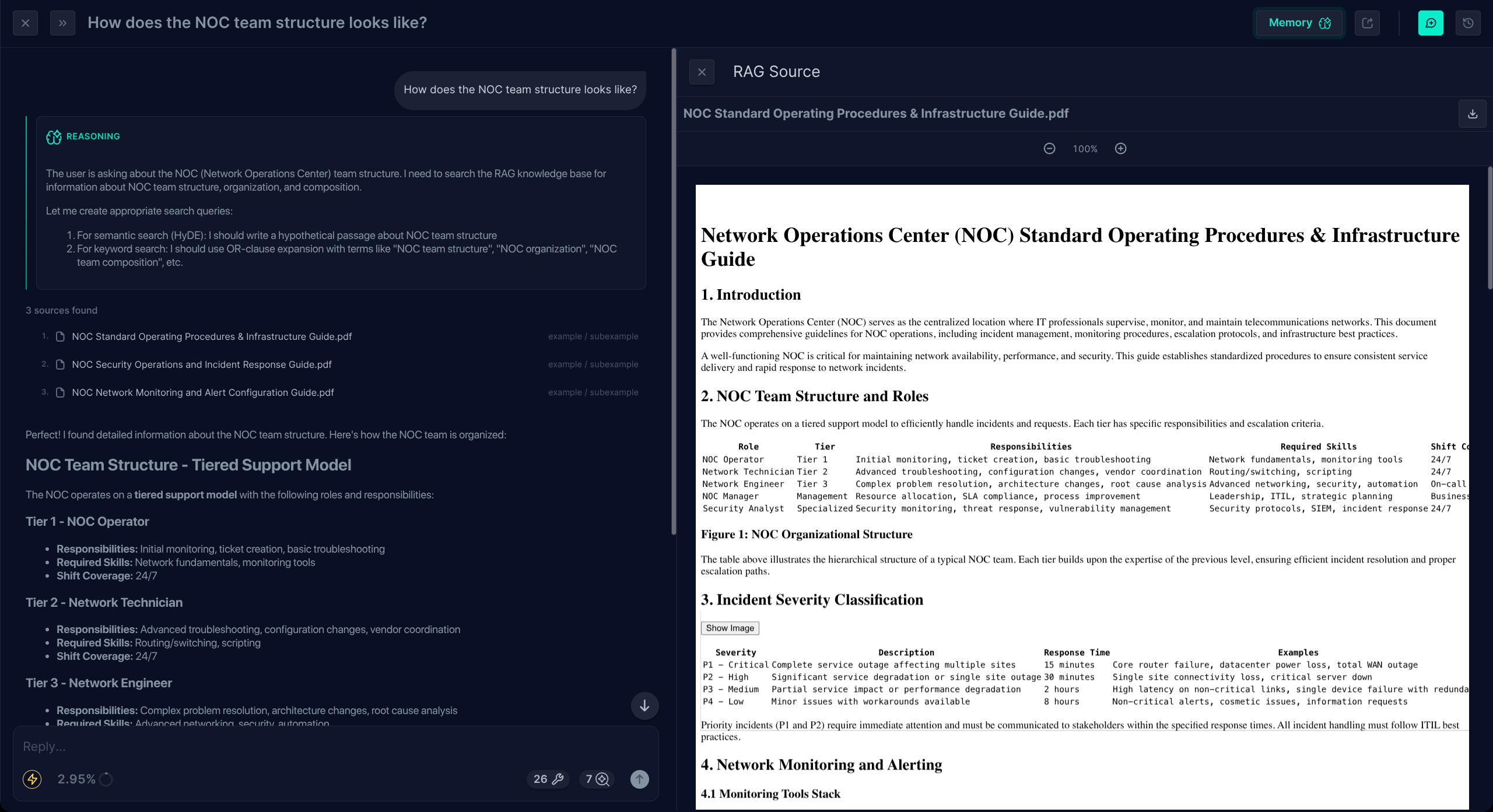
Search RAG
Takes a natural-language query and returns a ranked list of relevant passages, each tied to the document it came from. This is the main retrieval tool — the one called whenever the answer to a question is expected to live inside the corpus. Each result row is clickable and opens the source document in the drawer.
Filters: Search RAG accepts the richest set of filters of any tool. Beyond the query itself you can narrow:
- By collection — by id, by name, or by tags on the collection.
- By subcollection — by id, by name, or by tags on the subcollection.
- By document — by id, by name, or by tags on the document.
- How many results to return (
top_k, default 10, max 100). - Whole-document mode — instead of passage snippets, return the single most relevant entire document.
Any combination is valid: "search inside subcollection Phishing, but only documents tagged 2025, and return the top 5".
List Collections
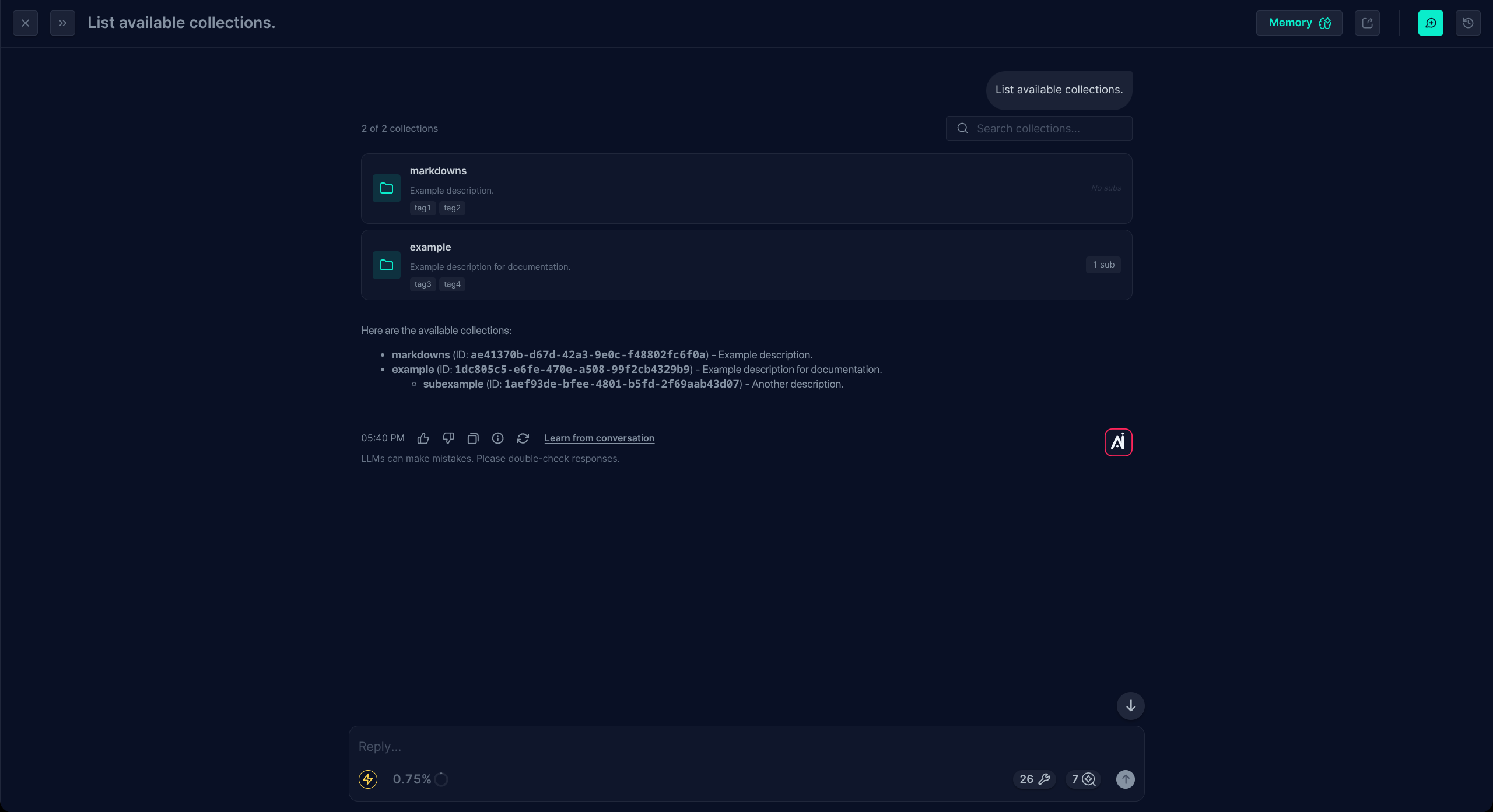
Returns the structure of the corpus — every collection, its description, its tags, and the subcollections it contains. This tool has two natural uses:
- For the user. Browse what's available — what collections exist, what each one is about, how they're organised.
- For the LLM. Resolve prerequisites before calling another tool. When a user asks for documents "in the HR Policies collection", the LLM may call List Collections first to discover the matching collection's id, then pass that id to List Documents or Search RAG.
Filters: narrow the listing by collection id, collection name, subcollection id, subcollection name, collection tags, or subcollection tags. Results are paginated.
List Documents
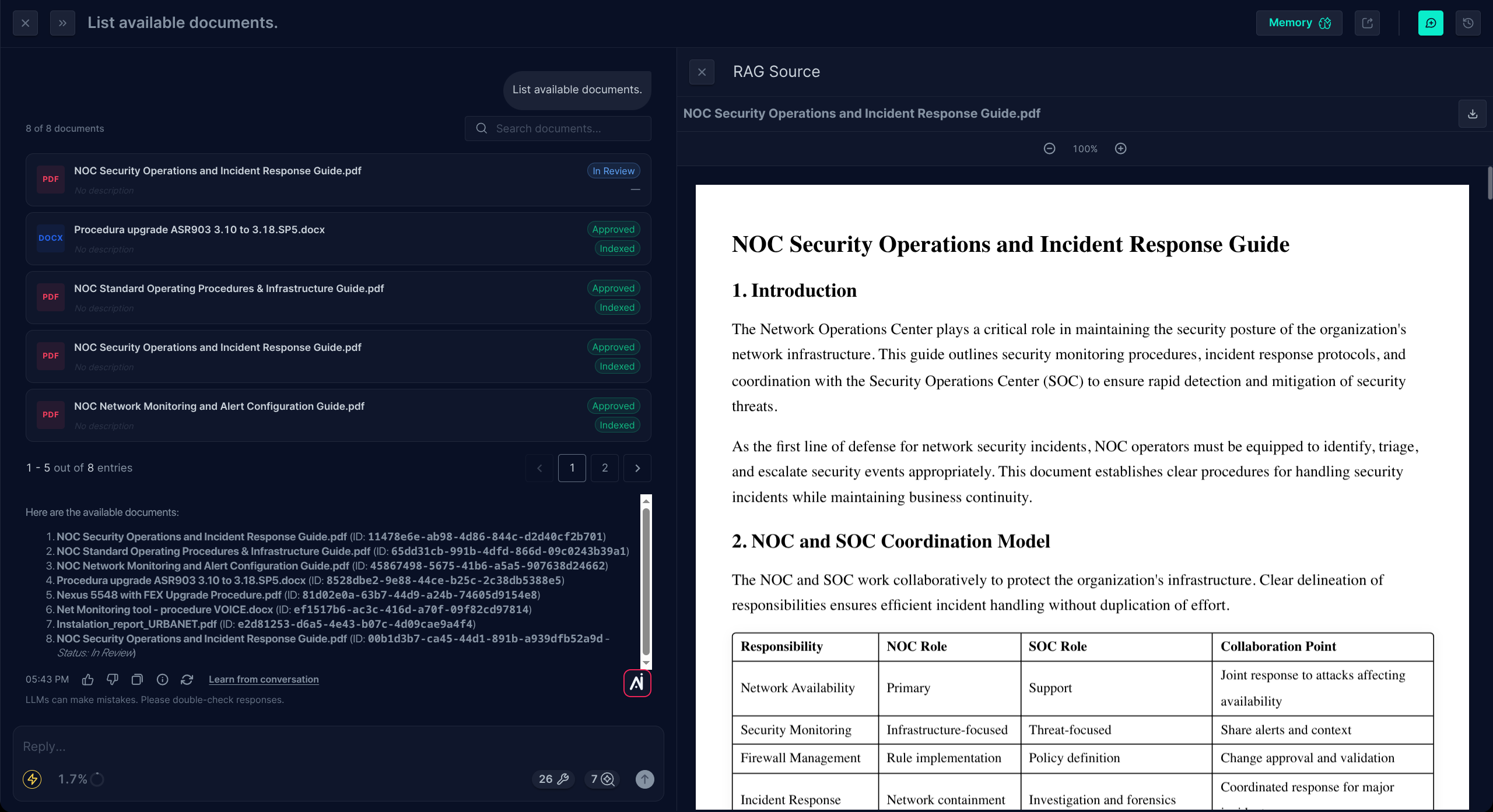
Enumerates documents inside a given scope — a collection, a subcollection, a tag filter, or any combination. Each result shows the document's name, description, tags, and indexing status, and is clickable to open the document. Same dual purpose as List Collections:
- For the user. Enumerate what's inside a given area ("what's in the Phishing subcollection?") rather than search for passages.
- For the LLM. Resolve a document name to an id, or scan a small set of candidate documents to pick the right one before fetching it.
Filters:
- Scope — collection id, subcollection id, collection name, plus any combination of collection tags, subcollection tags, and document tags.
- Document state — filter by approval status (whether the document has been approved after conversion) and by indexing status (whether it's actually searchable yet). Handy for surfacing documents that are stuck in review or that haven't been indexed.
Results are paginated.
Get Document
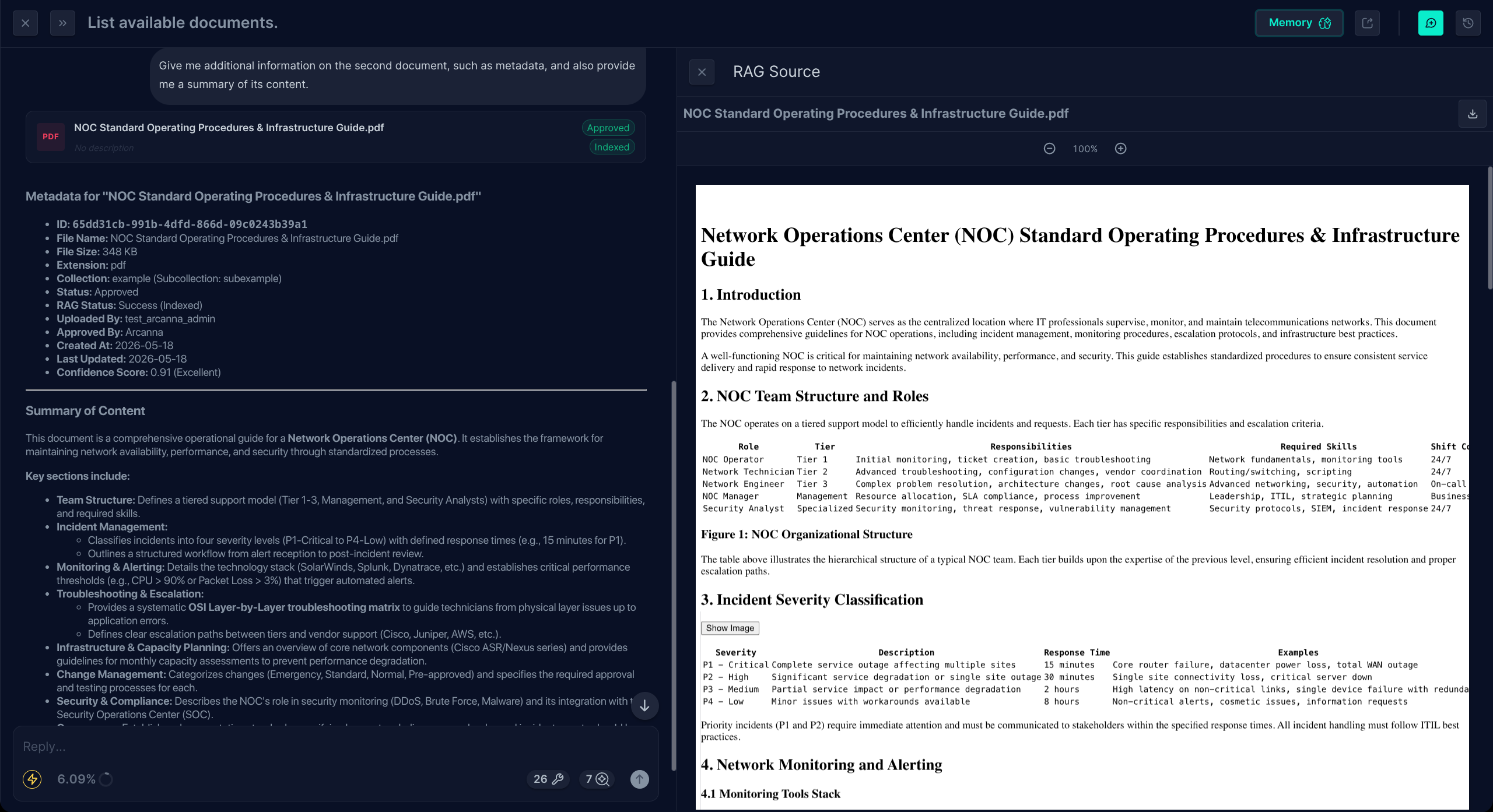
Fetches a single document by id, with its metadata. Use this when the specific document is already known — citing a known runbook by name, inspecting a particular policy — rather than searching for it.
Get Document is also a retrieval tool, not just a metadata fetch. It exposes an include_content flag: when set, the response includes the document's full markdown content. This gives two patterns beyond metadata lookup:
- In Agentic Workflows, when an agent always needs the same known document, granting it Get Document with
include_contentis more predictable than relying on Search RAG — the agent gets the exact document every time, no ranking, no near-misses. - In the AI Assistant, after the user has traversed List Collections / List Documents and identified a specific document, Get Document with
include_contentis how its full content gets pulled into the conversation as grounded context.
Filters: Get Document takes the document id as input and one option — include_content — to control whether the markdown content is included in the response or only the metadata.
Using the RAG tools in Arcanna
The four tools are internal tools: they're called by the Assistant or by workflow agents, not invoked directly by users. What you control is whether each tool is available in a given context.
In the AI Assistant
The Assistant exposes the RAG tools through its Tools panel. Each RAG tool can be toggled on or off:
- Enabled tools are part of the Assistant's tool palette and can be called when a user's question benefits from grounded content.
- Disabled tools are removed from the palette entirely and will not be called, even if the question would have matched.
This panel is also the source of truth for which RAG tools are wired into the Assistant — if a tool isn't listed here, the Assistant cannot use it.
In Agentic Workflows
In a workflow, RAG tools are granted to an agent explicitly in the agent's code. Each agent declares the tools it is allowed to call, and the RAG tools are referenced by their internal names alongside any other tools the agent uses. An agent that hasn't been granted a given RAG tool simply cannot call it — there is no implicit access.
Scope (collection, subcollection, tag, document) can also be fixed at the call site, so workflow behaviour stays predictable and auditable: the tools an agent can reach are visible in the code that defines it.
root_agent=LlmAgent(
   name="RAG_AGENT",
   model=LiteLlm(model=MODEL),
   description="Answers to anything collections/subcollections/documents/rag related.",
   instruction="You answer to anything collections/subcollections/documents/rag related.",
   tools=[internal_tools.internal_search_rag, internal_tools.internal_get_document, internal_tools.internal_list_collection, internal_tools.internal_list_documents]
)
Click-to-source
All four tool cards share one important property: every result is a link. When the Assistant answers a question or a workflow takes a step, the user can click straight from the chat to the underlying PDF, Word document, or slide deck.
This matters for three reasons:
- Trust. Users don't have to take the answer on faith — any claim can be verified against the original source.
- Drill-down. A retrieved snippet is rarely the full story. The drawer lets users read the surrounding paragraphs, look at the table the snippet came from, or see how a procedure unfolds in full.
- Audit. When a workflow makes a decision based on a document, the citation chain — workflow → tool call → document — is preserved in the chat. Anyone reviewing the conversation later can see exactly which documents informed which step.
Images. Arcanna's RAG pipeline currently ignores images and focuses entirely on text-based content — the quality of open-weight vision models was not yet at the bar we wanted to ship. For heavily image-based documents the model can't reason over the imagery, but the hyperlinks still let users open the document and look at the images themselves. A workaround for image-only content (e.g. a PDF that's just a network diagram) is to write a robust textual description in the markdown editor; that text becomes retrievable by natural language even though the image itself isn't.
Hyperlinks are produced automatically — you don't author them or configure them. As long as a document has been ingested, anything that retrieves it will be clickable.
How content authoring affects retrieval
Even though retrieval is automatic, the tags you set on each document directly shape its behaviour. Tags narrow the candidate set before ranking — e.g. "only documents tagged oncall". They don't change ranking. Use tags for what kind of document this is (runbook, policy, 2025-Q1).
Tags are edited inline on each document in the RAG Manager UI. Changes take effect immediately for the next retrieval call.
How scope is set
Retrieval can search across your entire indexed corpus, but it usually shouldn't. Narrower scope produces better results — fewer near-misses to compete with.
Scope is set in two ways:
- AI Assistant. Scope is inferred from the conversation or stated by the user. If the user names a collection or subcollection ("check the HR Policies"), retrieval is restricted accordingly.
- Agentic Workflows. Scope is explicit at the call site. A workflow can target a collection, subcollection, tag, specific document, or any combination — letting you build precise behaviours like "search only documents tagged
oncall".
Limitations
- CPU deployments don't run the second-pass precision model. Search still works and still returns ranked results, but the extra precision-refinement pass available on GPU isn't there. See CPU vs GPU tradeoffs.
- CPU deployments return a smaller maximum number of results. Without the precision-refinement pass, very long result sets add noise rather than signal.
- Very short or ambiguous queries can underperform. Retrieval searches with the query as-is; including a few keywords or a phrase usually helps.
CPU search always returns something — even when nothing relevant exists. On GPU, the precision-refinement pass drops candidates that fall below a quality threshold, so a search for content that isn't in the corpus can come back empty. On CPU that filter isn't applied, so the top-k closest matches are returned no matter how weak they are.
The LLM will usually recognise that the retrieved snippets don't answer the question and say so — but those snippets are now part of the conversation context, eating tokens inefficiently and potentially nudging follow-up turns toward irrelevant material. On CPU deployments, lean on narrower scope (collection, subcollection, tags) and on lower top_k values to keep low-quality matches out of the context window.