Markdown Conversion Pipeline
Overview
The conversion pipeline turns the file you uploaded — a PDF, a Word document, a spreadsheet, a slide deck, an HTML page, plain text — into clean text that the AI can read. That text is what gets reviewed (if needed), indexed, and ultimately shown to the model when it answers questions about your documents.
Supported input formats
| Format | What Arcanna does with it |
|---|---|
| Runs AI-based layout and table-extraction on every page; additionally runs OCR when the PDF has no embedded text layer | |
Word (.docx) | Reads the document's native structure — headings, lists, tables, paragraphs |
PowerPoint (.pptx) | Reads the slide content |
Excel (.xlsx) | Reads the sheets, including tabular structure |
HTML (.html) | Parses the web page's structure |
Markdown (.md) | Used mostly as-is |
Plain text (.txt) | Used as-is |
CSV (.csv) | Treated as tabular data |
Files in any other format are rejected at upload.
Conversion quality depends on the format
This is the single most important thing to understand about the conversion stage:
For every format except PDF, conversion is deterministic and reliable. Arcanna reads the document's native structure (headings, tables, lists), so the same Word file produces the same text every time. The quality of that text is a direct function of how well-authored the source file is — a Word document with proper heading styles, real lists, and real tables converts cleanly; one that uses bold text instead of headings and tabs instead of tables converts poorly.
PDFs are the exception. Every PDF — scanned or not — goes through AI-based layout analysis and table extraction (detecting columns, reconstructing tables, deciding what's a heading vs. body text). Scanned or image-based PDFs additionally go through OCR on top of that. All of these are AI models, all of them are where conversion errors typically originate, and all of them are the reason PDF conversion is the most expensive thing the ingestion pipeline does.
The practical takeaway: if you have the choice between uploading a Word document and a PDF of the same content, upload the Word document. It will convert better, every time. Scanned or image-based PDFs are the worst case (OCR errors stack on top of layout errors), but even born-digital PDFs — the ones generated by software, with an intact text layer — still rely on AI models for layout and tables and can come out with misordered columns, scrambled tables, or headings demoted to body text.
The text doesn't need to be perfect
Conversion errors are not as scary as they look. The downstream consumer is a large language model, and LLMs are robust to:
- minor OCR errors (a misread character here and there),
- slightly malformed tables,
- occasional reordered paragraphs,
- missing or duplicated whitespace,
- typographic noise.
What matters is that the meaningful content is there: the right words, in roughly the right order, with section boundaries somewhat preserved. Don't spend reviewer time fixing cosmetics. Spend it on outright wrong content — pages where OCR produced gibberish, tables whose columns got swapped, headings that landed in body text.
Edit and approval
Why review exists
Conversion is best-effort. Even with state-of-the-art models, a PDF can contain pages that are unreadable (when OCR is involved), columns that are mis-ordered, or tables that come out scrambled — and this can happen with born-digital PDFs too, not only scanned ones. The review step is where a human:
- spots and fixes content-level errors,
- decides whether the document is good enough to be indexed,
- rejects documents that are unusable (encrypted, blank, the wrong file altogether).
When you review, you are editing the converted text — not the original PDF or Word file. The original stays untouched and remains downloadable; you're shaping the version of the document that the AI will read.
Reviewing the converted text
When a document is in In Review state, open it from the documents list. Arcanna shows the converted text in an editor next to a preview of the original file, so you can compare side-by-side.
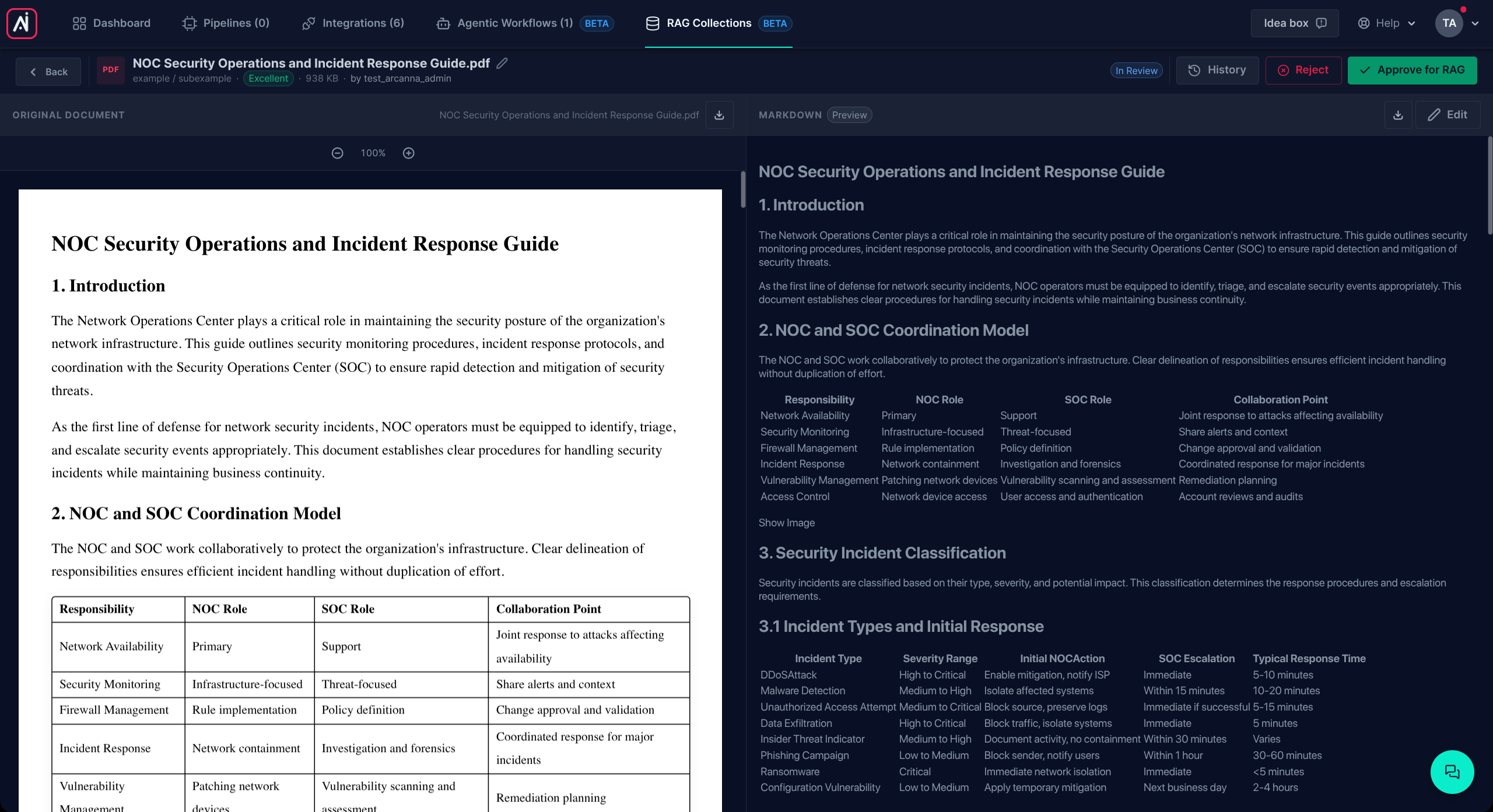
You can edit the text freely. Saving your edits returns the document to In Review — the new content will need to be approved before it reaches the indexing stage. If the document had already been indexed, saving new text also removes the old version from the search index, so search results never contain stale content.
Approving
Approving the document transitions it to Approved and queues it for indexing. The approver is recorded on the document along with an activity-log entry, so you can later see who approved what and when.
Rejecting
If the conversion is too broken to fix, you can reject the document. Rejected documents are kept (the file and its text are still there) but won't be indexed and won't appear in search results. You can reverse a rejection later by editing the text again — which moves it back to In Review.
Approval system
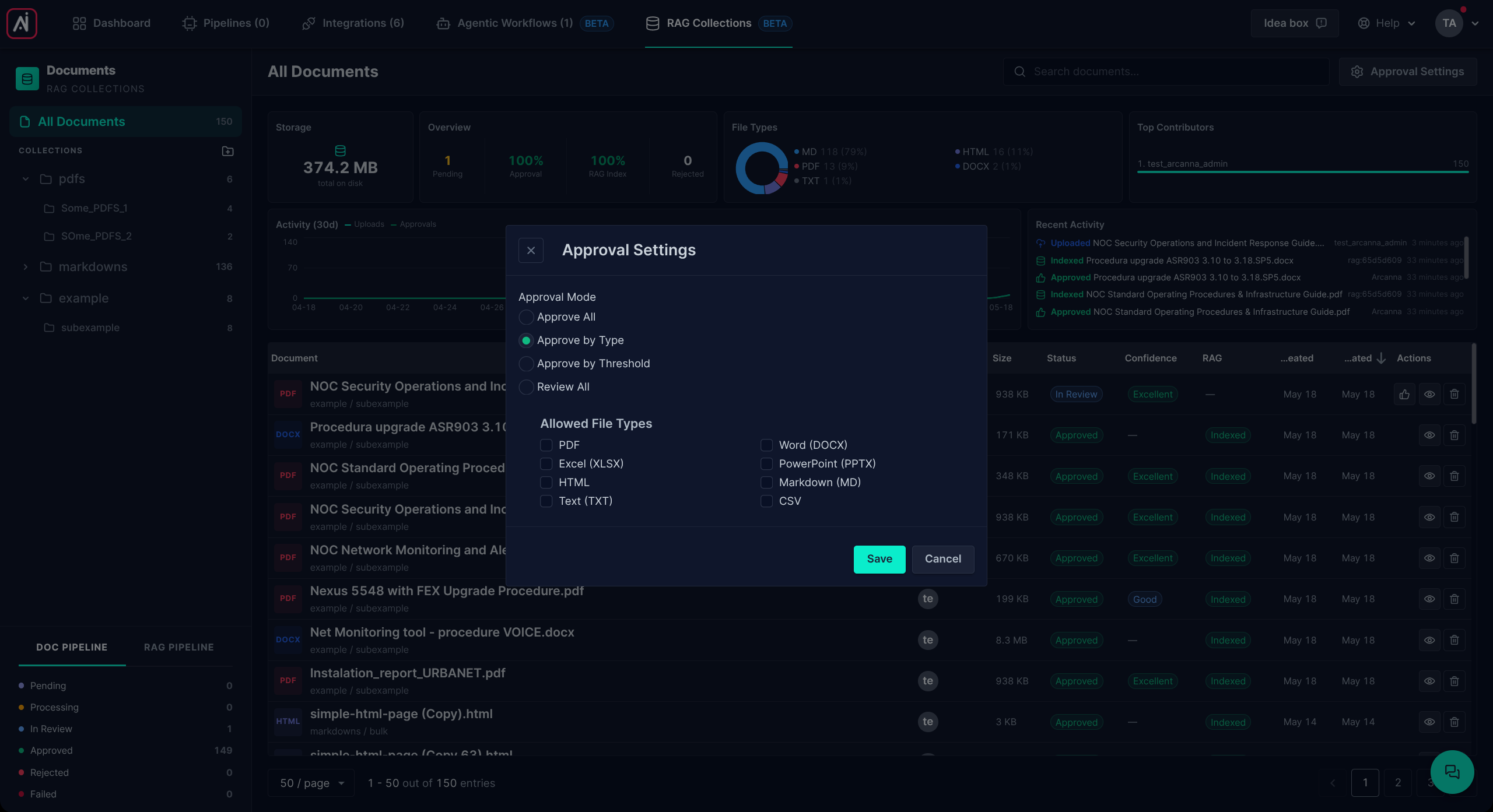
Approval behaviour is controlled by a single setting in the Arcanna admin UI. It applies to all incoming documents and decides whether they auto-approve or land in a reviewer's queue.
There are four modes. In order to access the approval settings, you must select the "All Documents" syntehtic collection, and the button will appear on the top right of the page. This behaviour is intended because this is a global setting.
Approve all
Every successful conversion is auto-approved and goes straight to indexing. No human review at any point.
Use this when you trust your input corpus entirely and want zero friction — typically internal, well-structured Word/HTML documents authored by your own team.
Approve by type
Documents are auto-approved only if their file type is in an allow-list you specify; everything else is sent to review.
This is the recommended pattern for mixed corpora. A typical allow-list includes Word, PowerPoint, Excel, HTML, Markdown, plain text, and CSV — and deliberately excludes PDF, for reasons explained below.
Approve by threshold
Arcanna assigns each PDF conversion a confidence score (based on how confident the layout, table-extraction, and — if applicable — OCR models were). With this mode, PDFs above your chosen confidence threshold auto-approve, and PDFs below it go to review. All non-PDF formats auto-approve (their conversion is deterministic, so a threshold isn't meaningful).
A higher threshold sends more PDFs to review; a lower threshold lets more through. A reasonable starting point is around 0.8.
Review all
Nothing auto-approves. Every document — including obvious wins like well-structured Word files — passes through a reviewer before it's indexed.
Use this for highly regulated environments where every piece of content reaching the AI must have a human signature.
Recommendation: be cautious about auto-approving PDFs
We strongly recommend being conservative when auto-approving PDFs. Every PDF goes through AI-based layout and table-extraction models, and scanned or image-based PDFs additionally go through OCR. These models are the most common source of conversion errors — column order, table structure, heading vs. body distinctions, and on top of that any character-level OCR mistakes. Auto-approving means whatever those models produced (garbled words, scrambled tables, mis-ordered columns) ends up in the search index and, from there, in the AI's context when it answers questions.
Practical guidance:
- Born-digital PDFs (PDFs created by software, not scanned) skip OCR but still rely on AI for layout and tables. They usually convert well, but tables and multi-column pages can still come out wrong — auto-approval is reasonable for simple, mostly-text PDFs, riskier for layout-heavy ones.
- Scanned or image-based PDFs are the worst case: OCR errors stack on top of layout errors. Choose either Approve by type with PDF excluded from the allow-list, or Approve by threshold so low-confidence conversions get human review.
- For other formats (Word, PowerPoint, etc.), conversion is deterministic and auto-approval remains safe.
Best practices
- Prefer native source formats over PDF when both are available. A Word document of a memo converts strictly better than a PDF print-out of that same memo.
- Don't polish the text — fix content errors. The AI is forgiving of cosmetic noise but cannot recover from missing or wrong content.
- Use tags as filters. Tag documents with attributes that let workflows target them (e.g.
runbook,oncall,2025-policy) — these narrow retrieval to the relevant subset. - Check low-confidence PDFs. When a PDF comes back with a low confidence score, take a look before approving — that number is Arcanna telling you it isn't sure.