Authentication
The REST API uses two types of API keys:
- Input keys: for data ingestion from external sources (for example, SOAR platforms).
- Management keys: for all management and monitoring actions.
There are two ways you can obtain a token
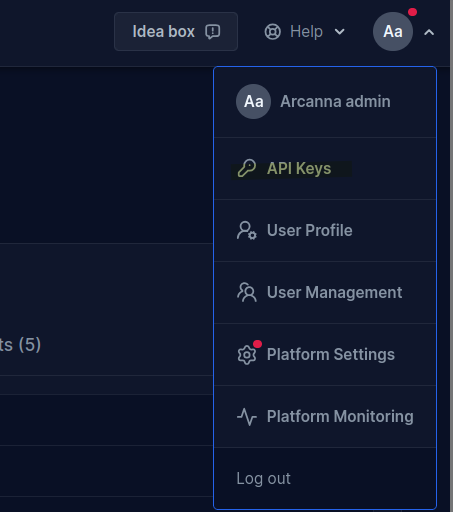
- from Arcanna UI in the API Keys section (in the right top user menu)
- using the Swagger UI (found on
https://<your-arcanna.ai-url>/docs/exposer, using the/api/v2/tokenendpoint)
Creating an API key from Arcanna UI
- Open the user menu and go to API Keys.
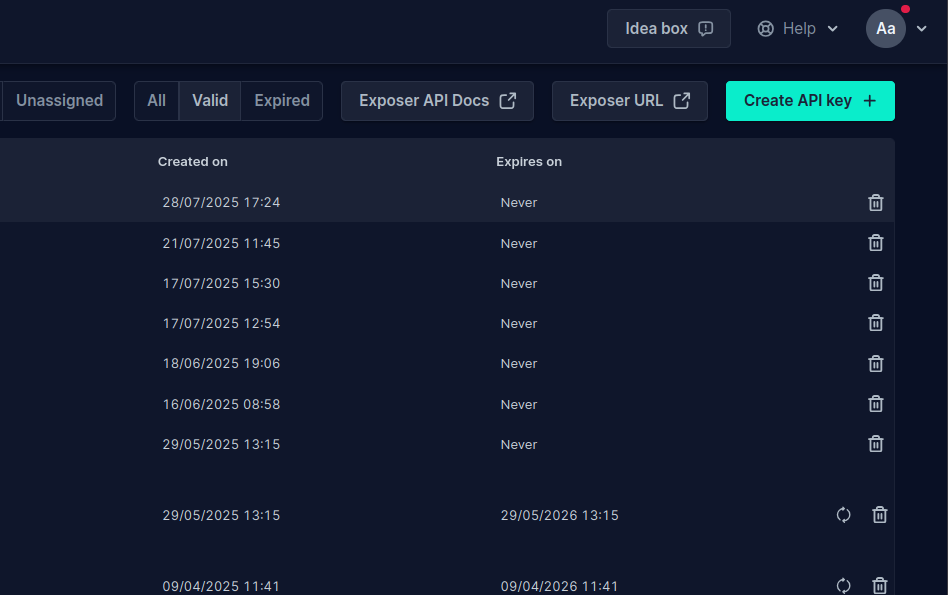
- Click Create API key.
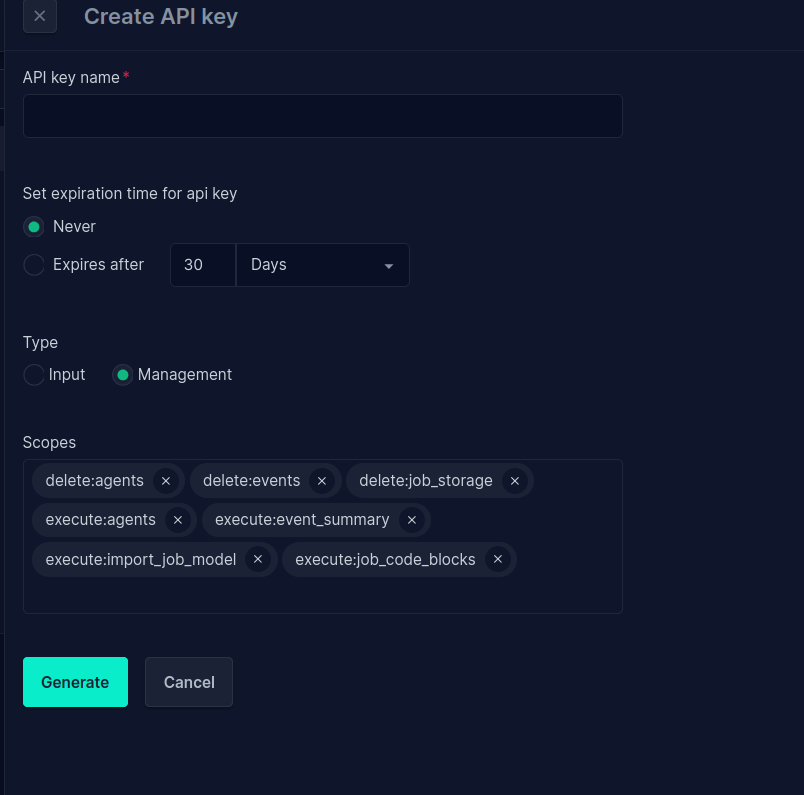
- Fill in the form, select the key type (
InputorManagement), the desired permissions and create the key.
Creating a management access token from Swagger
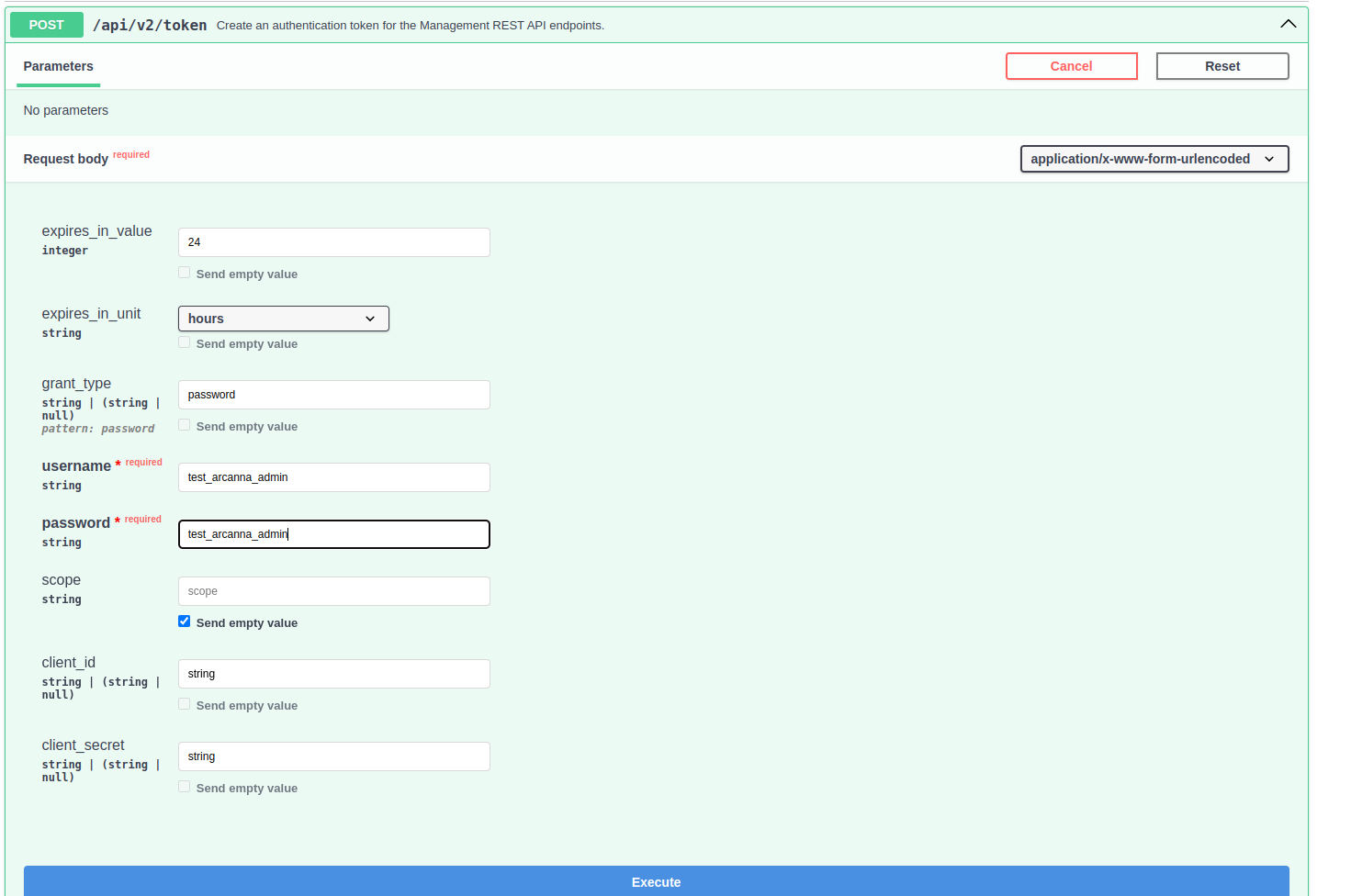
- Go to Swagger, expand the /api/v2/token endpoint, press 'Try it out'
- Complete your username and password.
- You can change the validity of the token from the input:
expires_in_valueandexpires_in_unit.
Below you can see an example request where we authenticated with a test admin user, and we generate a token valid for 24 hours:
Response will contain the value of the api token and the date of it expiration. Error message should be null in case of success. If an error occurs details will be present in the error_message field.
{
  "api_token": "KTPyunr-znfF5wp01YzWBRVJUa0zklg4LnEN75IRgLDbWrv8q6yJ1DitHYh3qokI2utV9nCZjdP3u60zQ9kQ_Q",
  "expire_at": "2025-04-18T09:34:52.290447Z",
  "error_message": null
}
Cases of error could be:
- wrong username/password combination
- user doesn't have admin role