TheHive
TheHive is a scalable, open-source and free Security Incident Response Platform (SIRP). It is designed to make life easier for SOCs, CSIRTs, CERTs and any information security practitioner dealing with security incidents that need to be investigated and acted upon swiftly. Analysts work on alerts (raw signals coming from various sources) and promote them into cases for collaborative investigation.
Arcanna - TheHive integration
The Arcanna integration with TheHive serves multiple roles: it acts as an input for gathering open cases or alerts, a post decision mechanism to add investigation notes and update the status of cases or alerts based on Arcanna's predictions, and a case creation mechanism to automatically open new TheHive cases out of escalated alerts.
Steps to configure TheHive integration:
Prerequisites
- A valid Arcanna instance - for setup, follow this user guide.
- A running TheHive instance - for setup, follow the TheHive documentation.
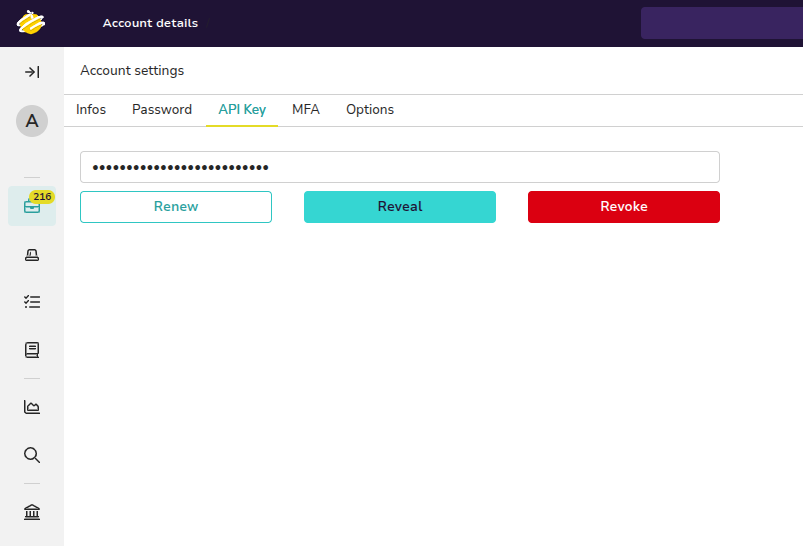
- A TheHive API key for a user with permissions to read cases/alerts and to create/update them. You can generate it from your TheHive account settings, under the API Key tab (use Reveal to copy it):
How to connect
Go to your Arcanna instance:
Create the integration
- Go to the Integrations tab and search for TheHIVE:
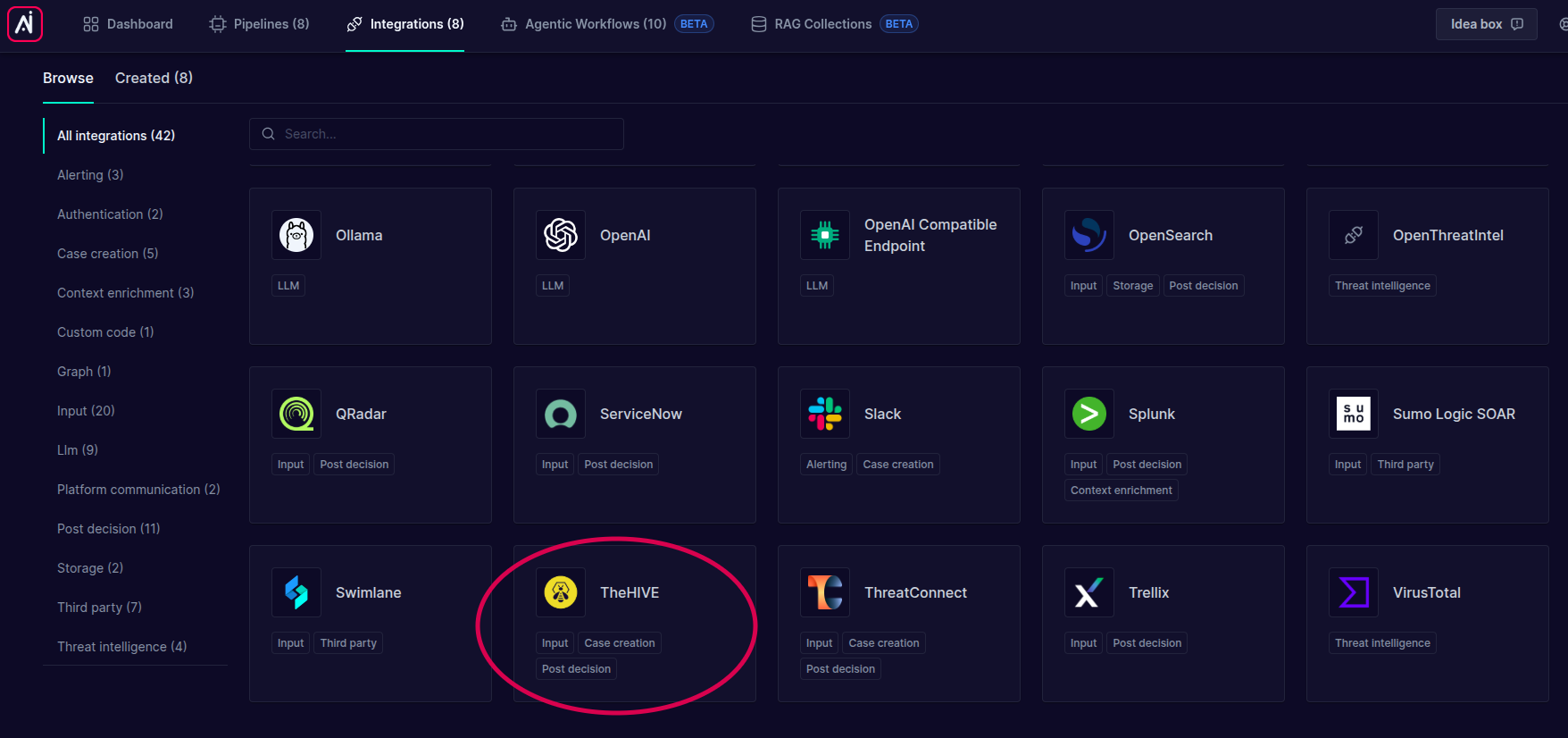
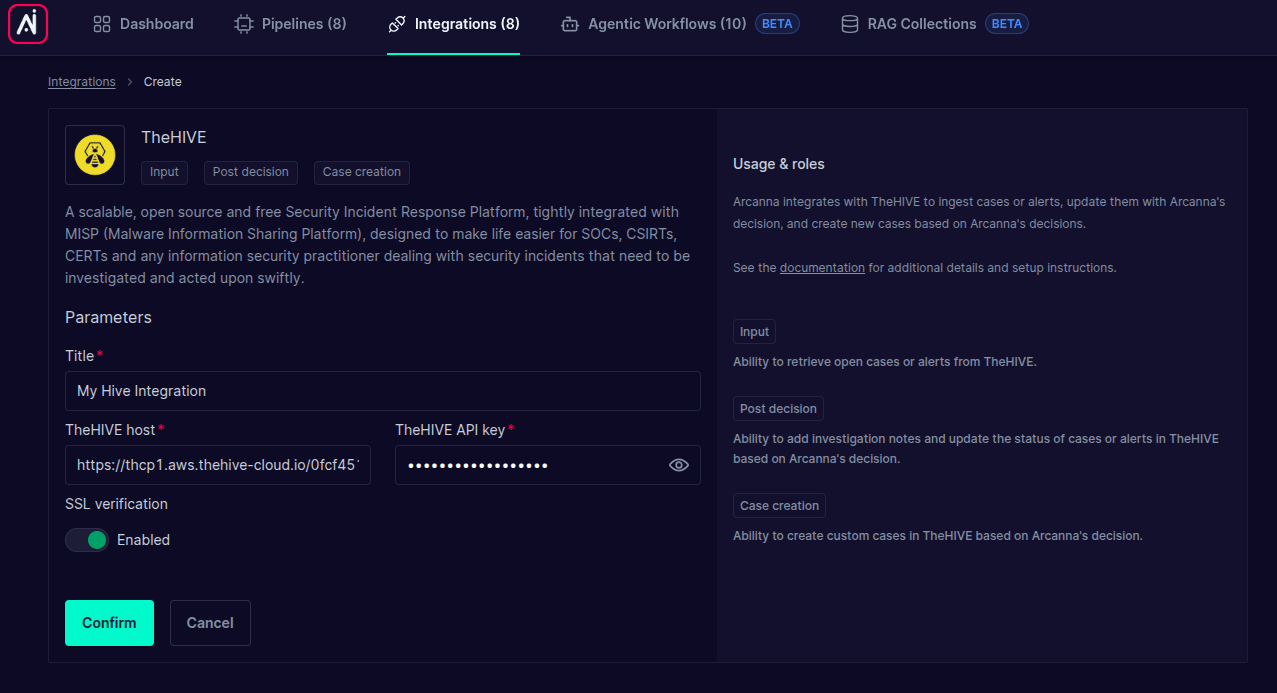
- Click on it and complete the parameters with your TheHive instance information:
| Parameter | Required | Description |
|---|---|---|
| Title | Yes | A friendly name for this integration (e.g. My Hive Integration). |
| TheHIVE host | Yes | The base URL of your TheHive instance (e.g. https://thcp1.aws.thehive-cloud.io/...). |
| TheHIVE API key | Yes | The API key used to authenticate against TheHive. Stored encrypted. |
| SSL verification | No | Toggle TLS certificate verification on/off. Keep it Enabled in most cases. |
On the right side of the screen you can see a short description of each of the roles this integration supports: Input, Post decision and Case creation.
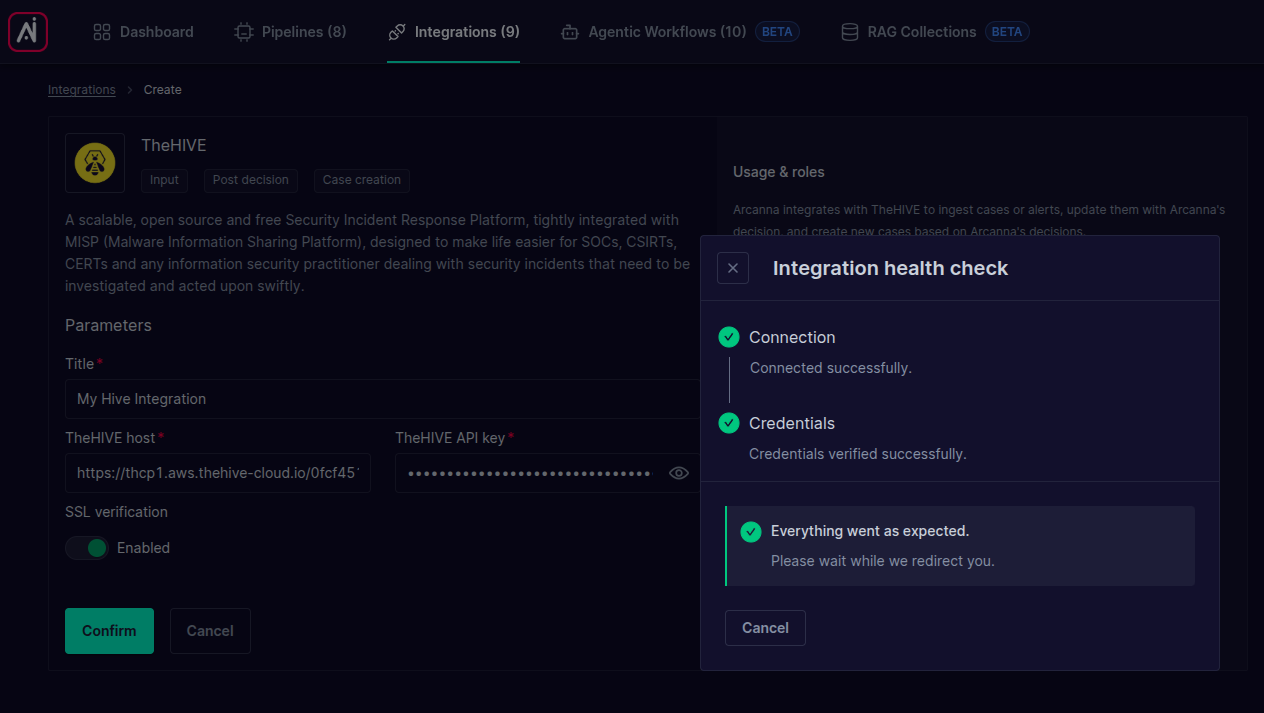
- Click Confirm. Arcanna runs a health check against TheHive (connection + credentials) and, once successful, the integration is created:
Use as input integration
Use TheHive as an input to ingest open cases or alerts into Arcanna for processing.
-
Create an Arcanna pipeline using TheHive integration:
- Go to the AI Pipelines tab and click Create Pipeline.
- In the Input section click Add + and select the TheHive integration you just created.
- Complete the parameters with the desired configuration:
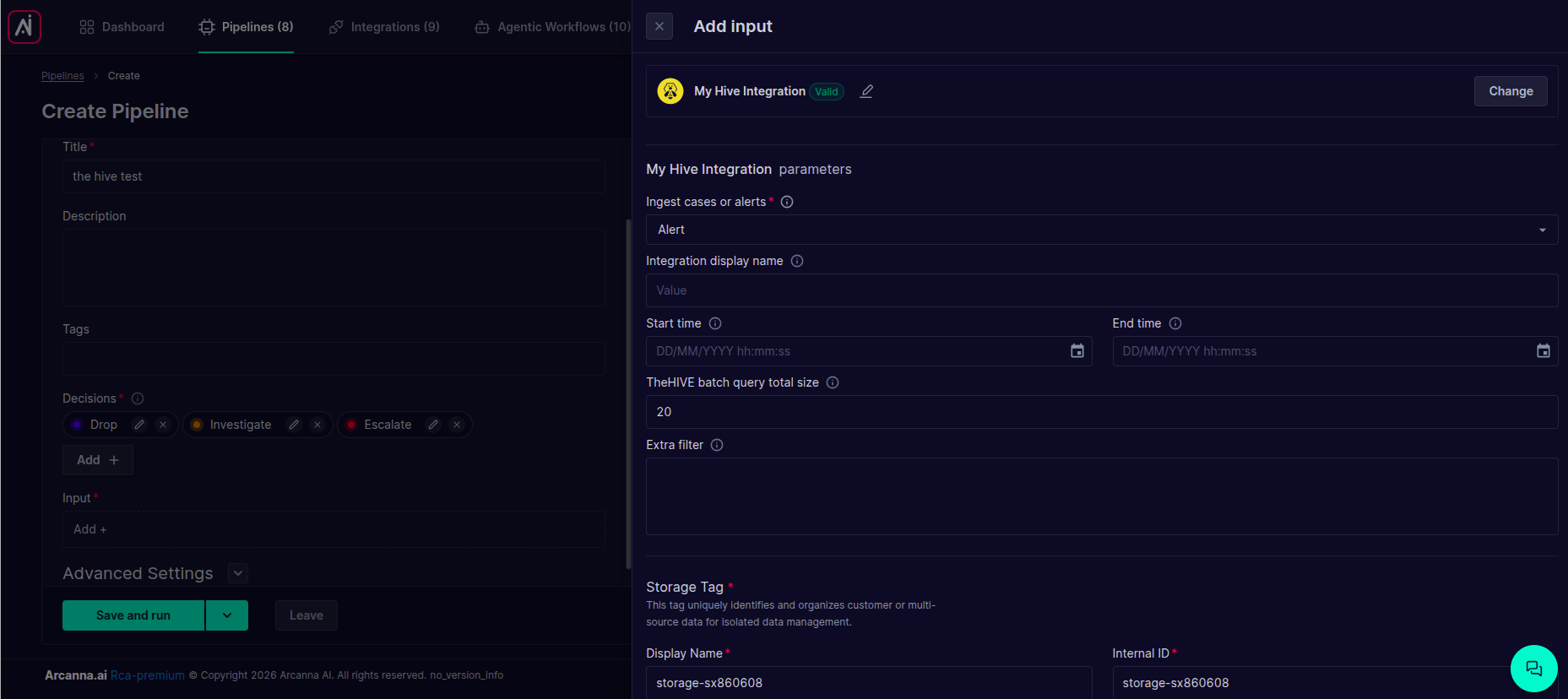
Parameter Required Description Ingest cases or alerts Yes Choose what to pull from TheHive: Case(only open cases are retrieved) orAlert.Integration display name No An optional label shown on the ingested events to identify the source integration. Start time No Lower bound (creation time) for the records to ingest. If left empty, ingestion starts from the beginning. End time No Upper bound (creation time) for the records to ingest. If left empty, there will be no end time limit. TheHIVE batch query total size No Number of records fetched per batch. Defaults to 20.Extra filter No An optional JSON filter (TheHive query DSL) applied on top of the time/status filters to further narrow down ingested records. When ingesting cases, Arcanna only retrieves cases in an open status (
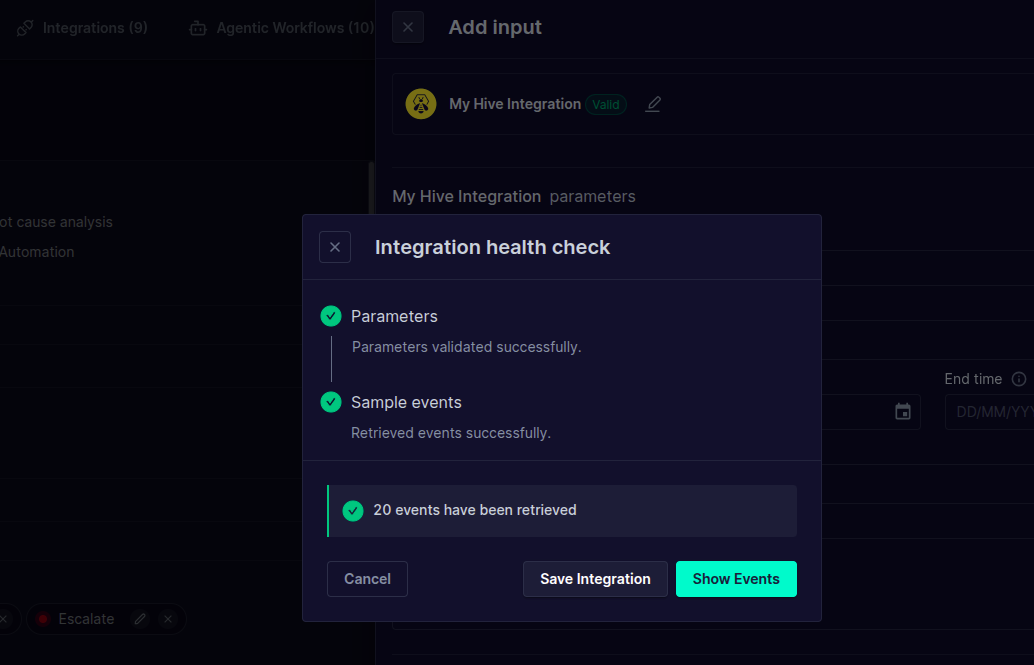
New,InProgress,Contained,Pending analysis). Records are paginated by creation date so newly created cases/alerts are picked up on subsequent runs.- Click Save and run. Arcanna validates the parameters and retrieves a sample of events:
-
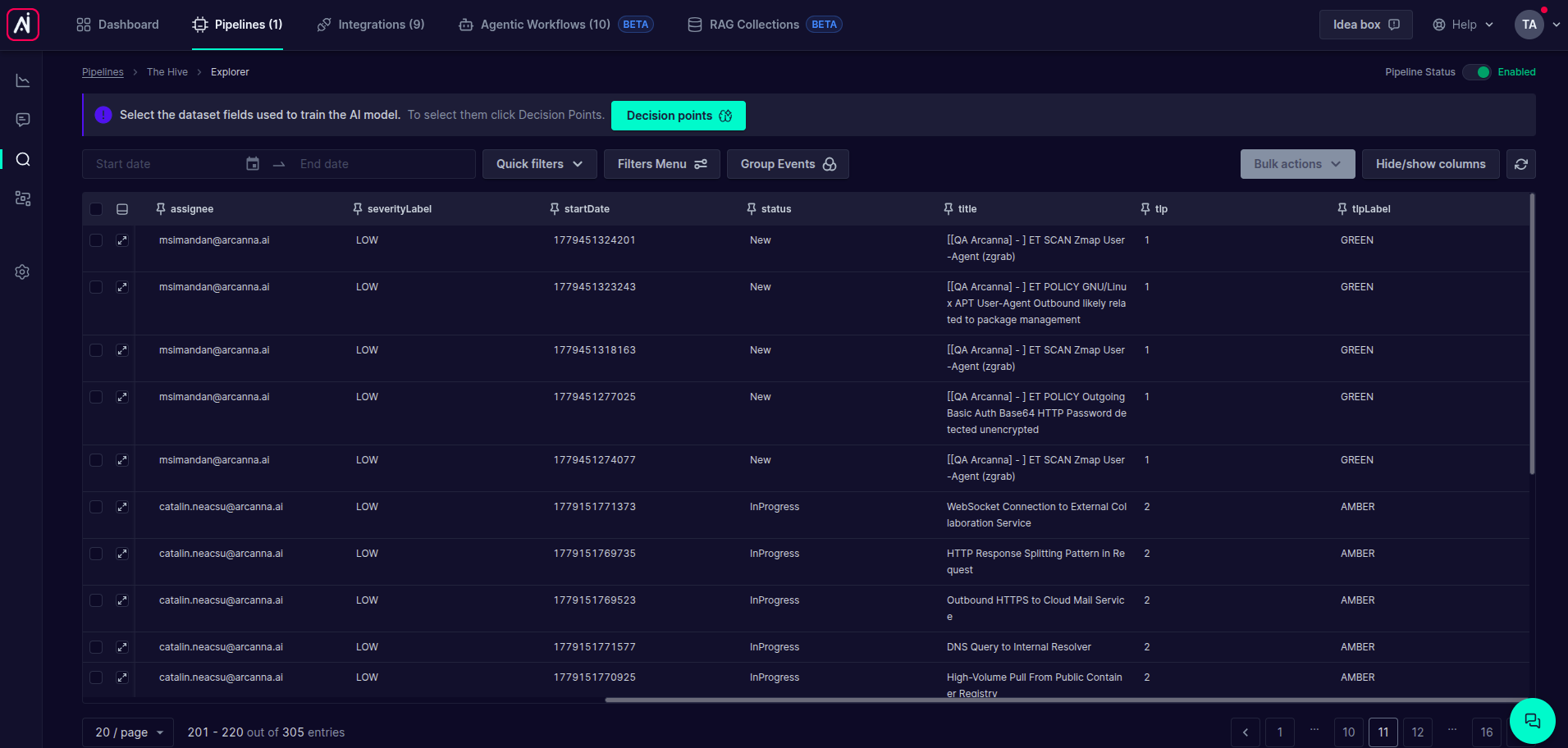
Navigate to the job's Event Explorer to review the ingested cases/alerts. No decision is available yet since no Arcanna model has been trained:
- Select Decision Points, then navigate to Feedback and Train to configure the features and train your initial Arcanna model.
Use as post decision integration
Use TheHive post-decision capabilities to add investigation notes and update the status of cases or alerts based on the Arcanna decision.
- Go to the job's Flows page, click Add integration + and select Post decision, then choose the TheHive integration.
- Configure the post-decision settings:
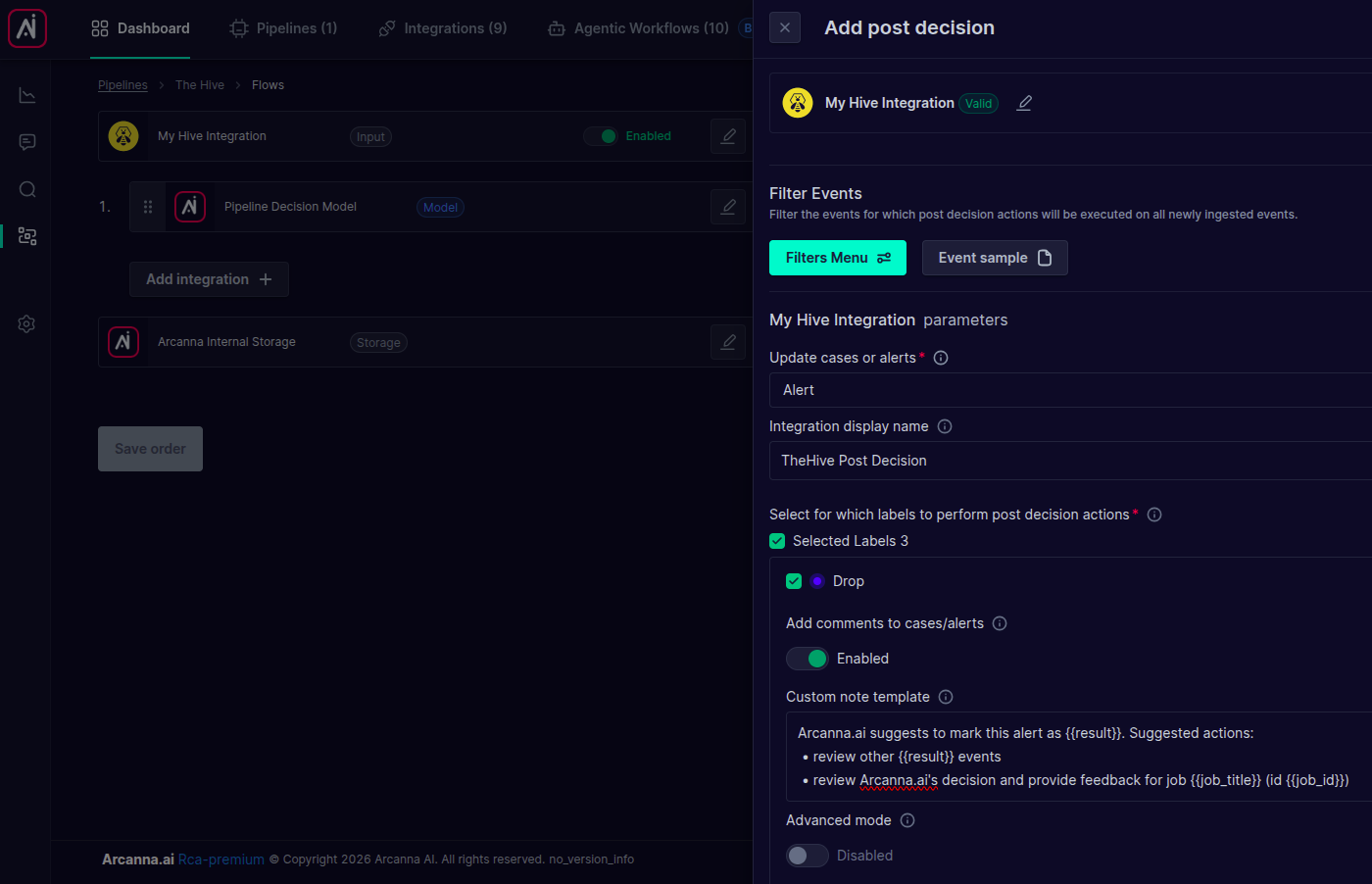
| Parameter | Required | Description |
|---|---|---|
| Update cases or alerts | Yes | Whether the post-decision actions target TheHive Case or Alert entities. This should match the type of the ingested events. |
| Integration display name | No | An optional label for this post-decision action. |
| Select for which labels to perform post decision actions | Yes | The Arcanna decision labels (e.g. Drop, Investigate, Escalate) for which the actions below are applied. Each label is configured independently. |
For each selected label you can configure:
| Parameter | Description |
|---|---|
| Add comments to cases/alerts | When enabled, Arcanna adds a note/comment to the matched case or alert. |
| Custom note template | The note content. Supports Jinja2 templating with variables such as {{result}}, {{result_name}}, {{job_title}} and {{job_id}}. If left empty, a default note is used. |
| Advanced mode | Toggles between a simple status update and a free-form JSON update (see below). |
- With Advanced mode disabled, you set the target status directly. The available field depends on what you are updating:
- Update case status - one of the case statuses:
New,InProgress,Contained,Pending analysis,FalsePositive,TruePositive,Indeterminate,Other,Duplicated. - Update alert status - one of the alert statuses:
New,Updated,Ignored,Closed.
- Update case status - one of the case statuses:
- With Advanced mode enabled, you provide a Case/alert update fields JSON object that is sent directly to TheHive, allowing you to update multiple fields at once. It also supports Jinja2 templating, e.g.:
{
  "status": "TruePositive",
  "summary": "Closed by Arcanna with decision {{result}}",
  "tags": ["arcanna"]
}
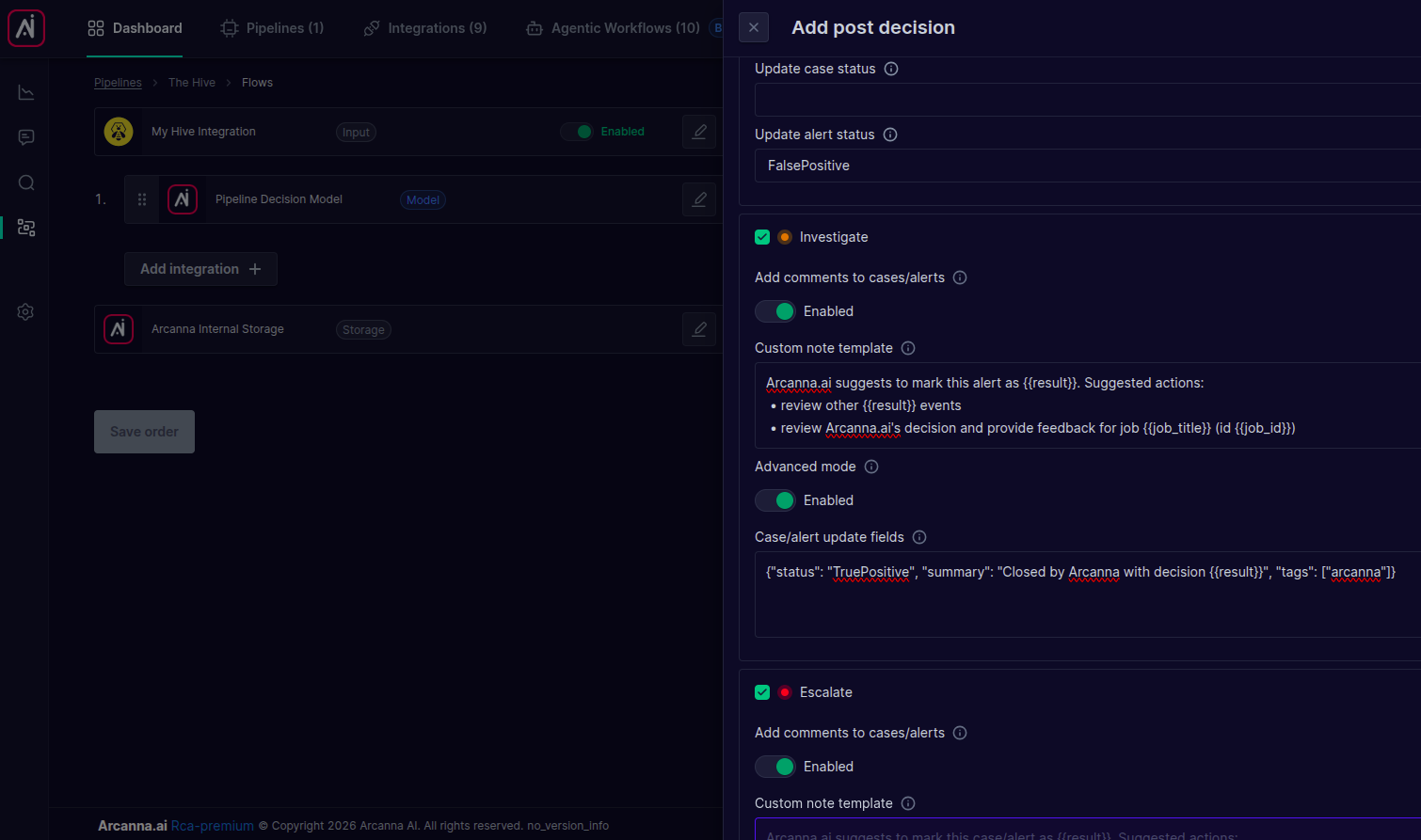
In the example above, the Drop label sets the alert status to FalsePositive, while the Investigate label uses advanced mode to set the status to TruePositive together with a summary and tags.
- Click Confirm. The post-decision action now appears in the job's Flows:
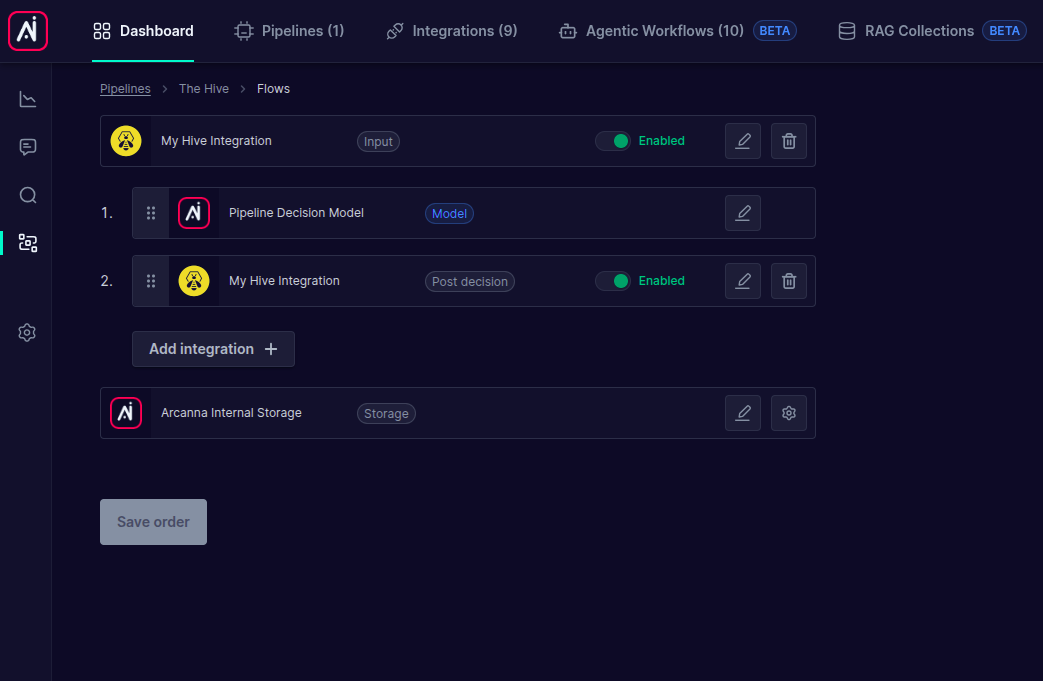
For the post-decision to be applied, the job must have a trained model. Navigate to Decision Points, provide feedback, and initiate a training session.
- Ingest a new record (or reprocess an existing one) and navigate to the job's Event Explorer to see the post-decision actions being applied:
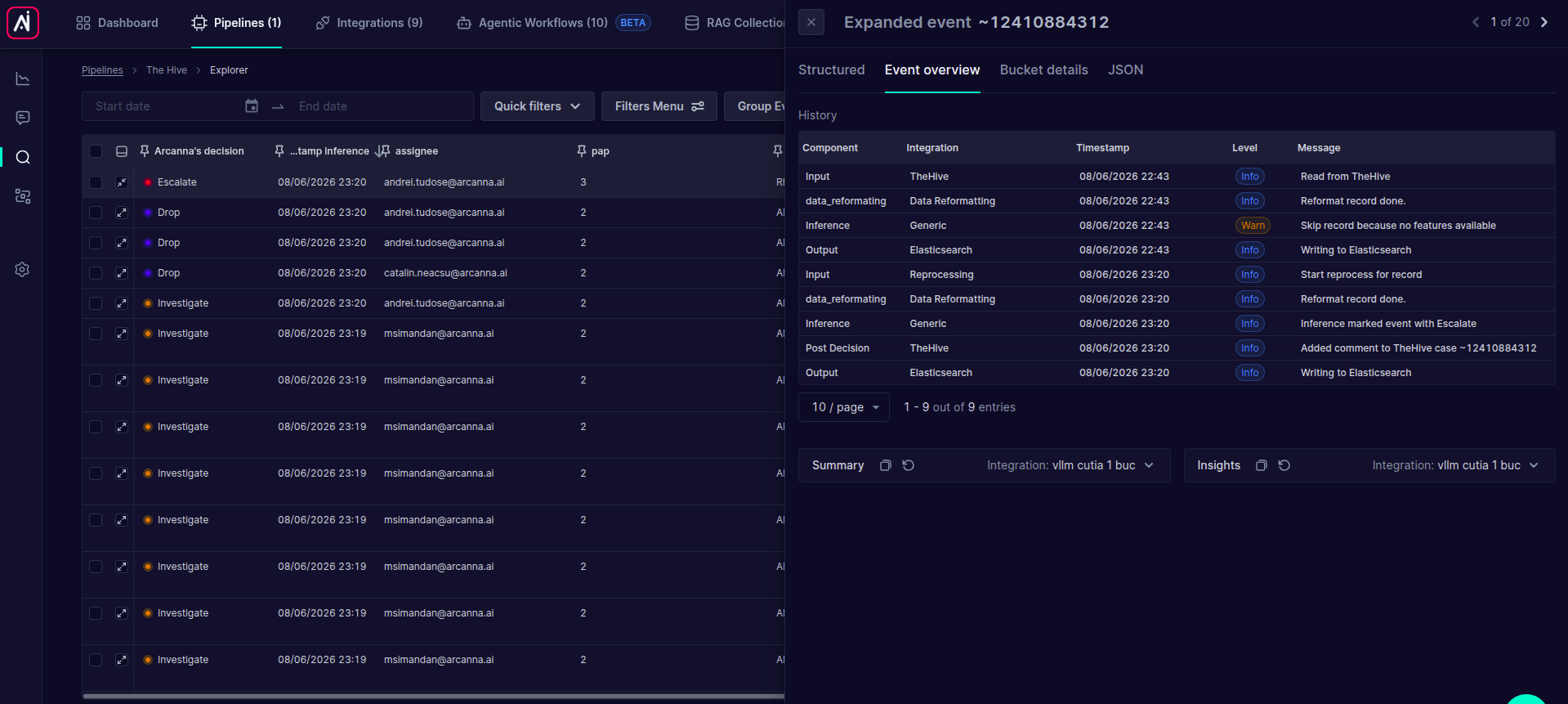
- Go to TheHive and open the corresponding case/alert to observe the note added and the status updated by Arcanna:
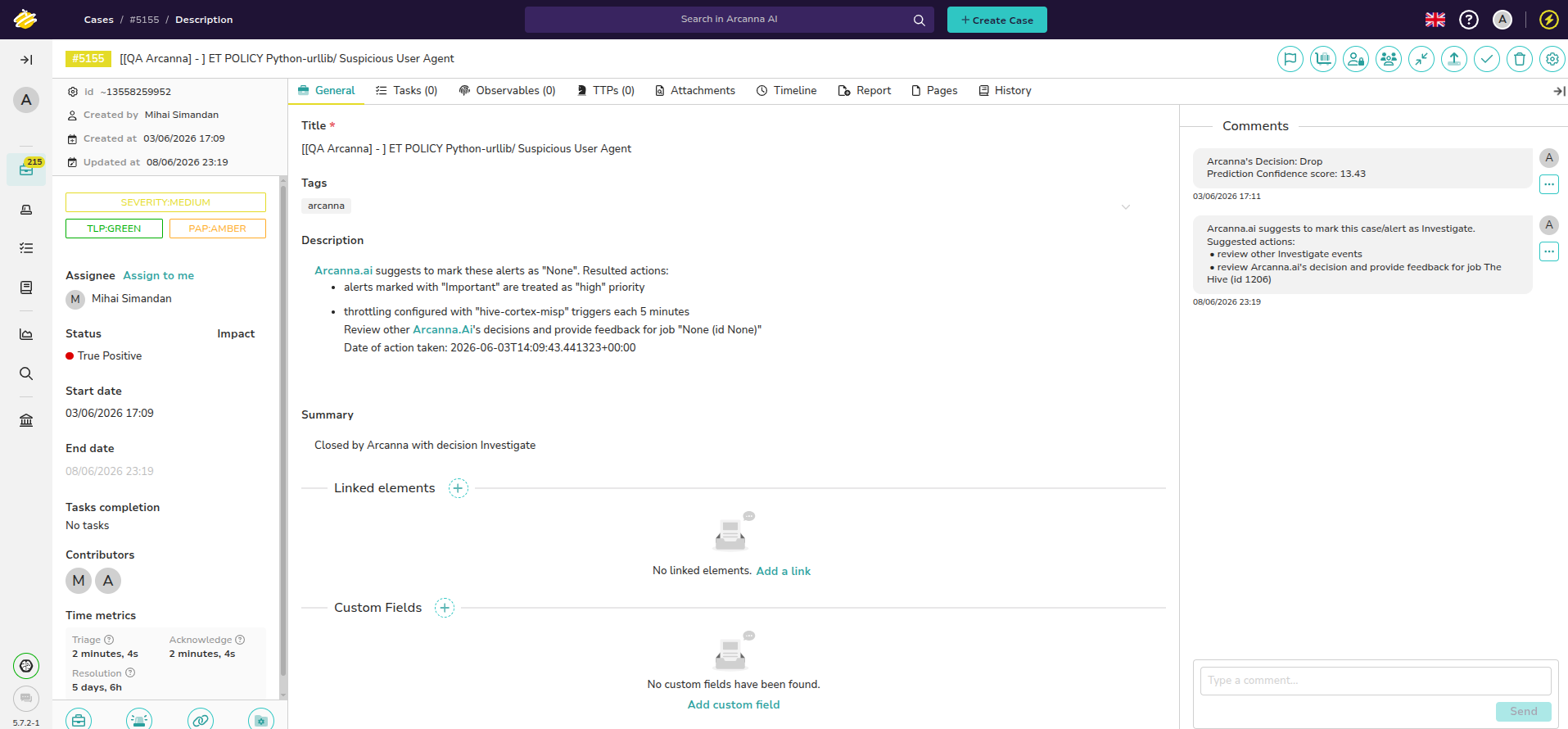
Use as case creation integration
Use TheHive case creation to automatically open a new TheHive case whenever Arcanna reaches a configured decision (i.e. when an alert is escalated). Created cases are tagged with the Arcanna decision label and a link back to the case is attached to the Arcanna event.
- Go to the job's Flows page, click Add integration + and select Case creation:
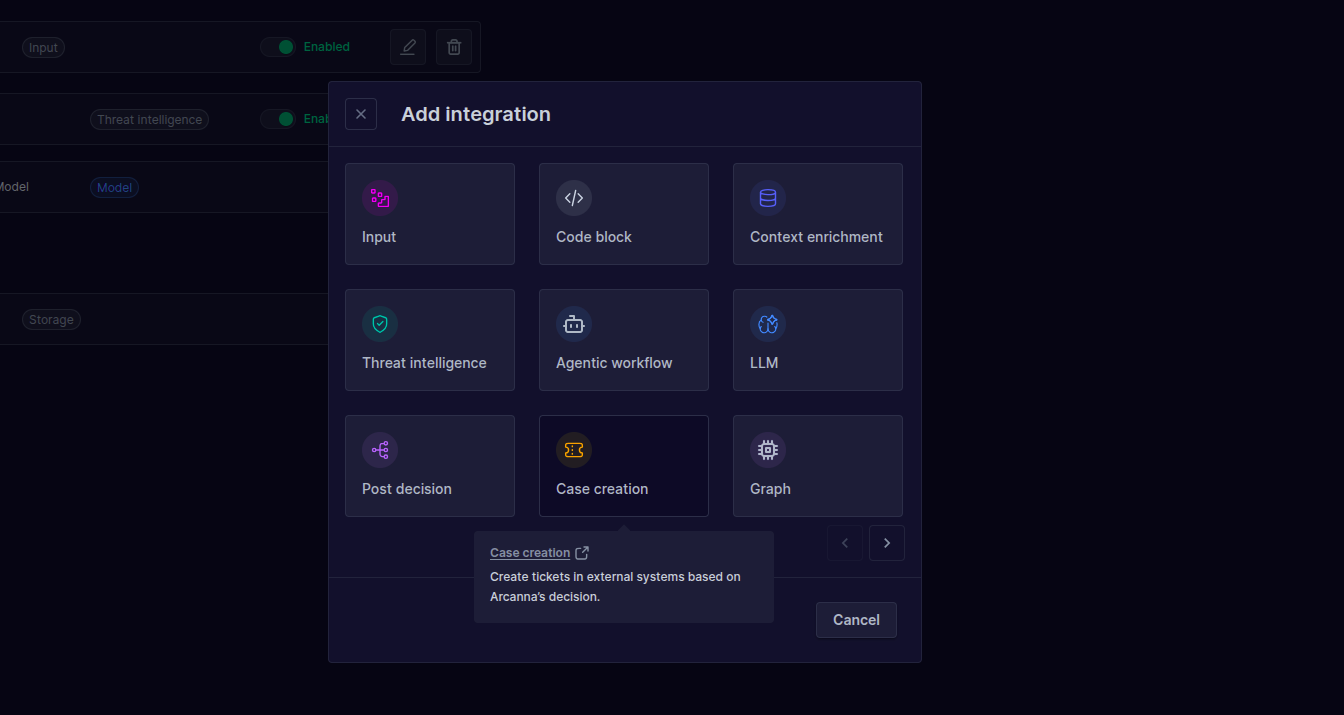
- Choose the TheHive integration and configure the case creation parameters:
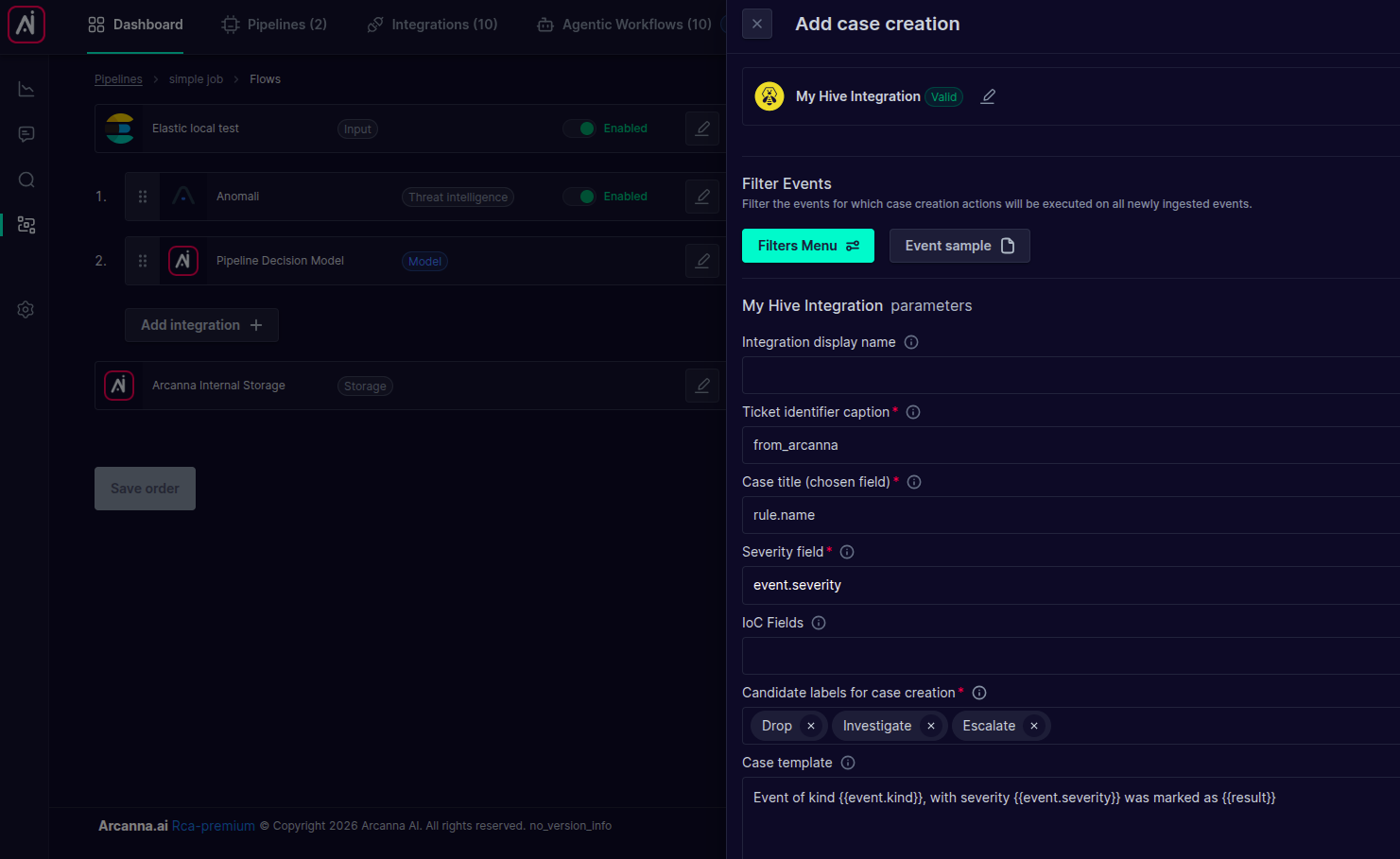
| Parameter | Required | Description |
|---|---|---|
| Integration display name | No | An optional label shown on the events to identify this case creation action. |
| Ticket identifier caption | Yes | A caption prepended (in brackets) to every case title (e.g. from_arcanna produces a title like [from_arcanna] ...). |
| Case title (chosen field) | Yes | The event field whose value is used as the case title (e.g. rule.name). |
| Severity field | Yes | The event field that holds the severity (e.g. event.severity). Text values are mapped to TheHive severities: informational/low -> 1, medium -> 2, high -> 3, critical -> 4. Numeric values are passed through as-is. |
| IoC Fields | No | Comma-separated list of event field names to extract as observables. IP-type observables are added to the case and, when Cortex analyzers are available, automatically analyzed. |
| Candidate labels for case creation | Yes | The Arcanna decision labels (e.g. Drop, Investigate, Escalate) that trigger case creation. Only events with a matching decision will create a case. |
| Case template | No | The case description. Supports Jinja2 templating, so you can interpolate event fields and the decision, e.g. Event of kind {{event.kind}}, with severity {{event.severity}} was marked as {{result}}. |
As with post-decision, case creation requires a trained model so that Arcanna produces a decision for the ingested events. You can also use the Filters Menu at the top to restrict case creation to events matching specific criteria.
- Click Confirm. The case creation action now appears in the job's Flows:
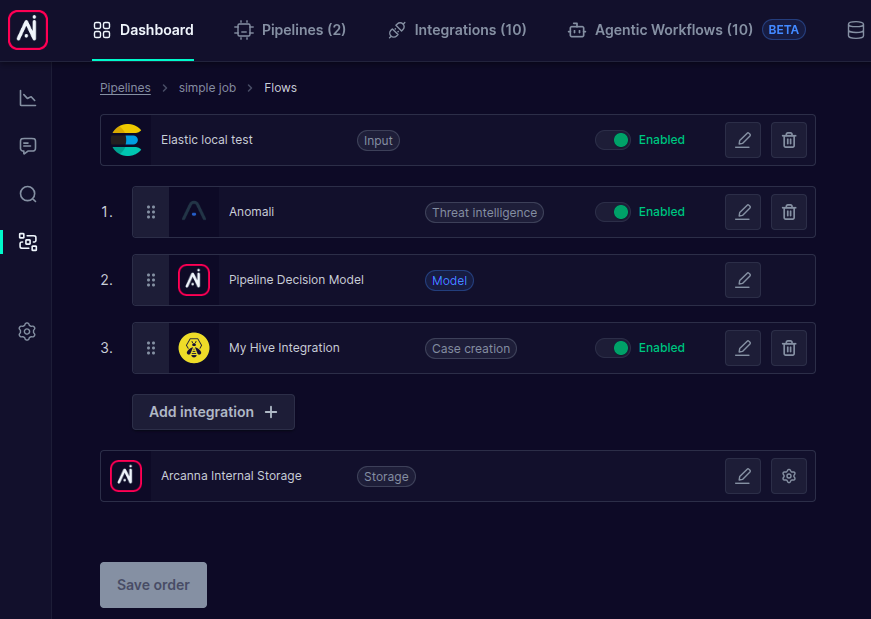
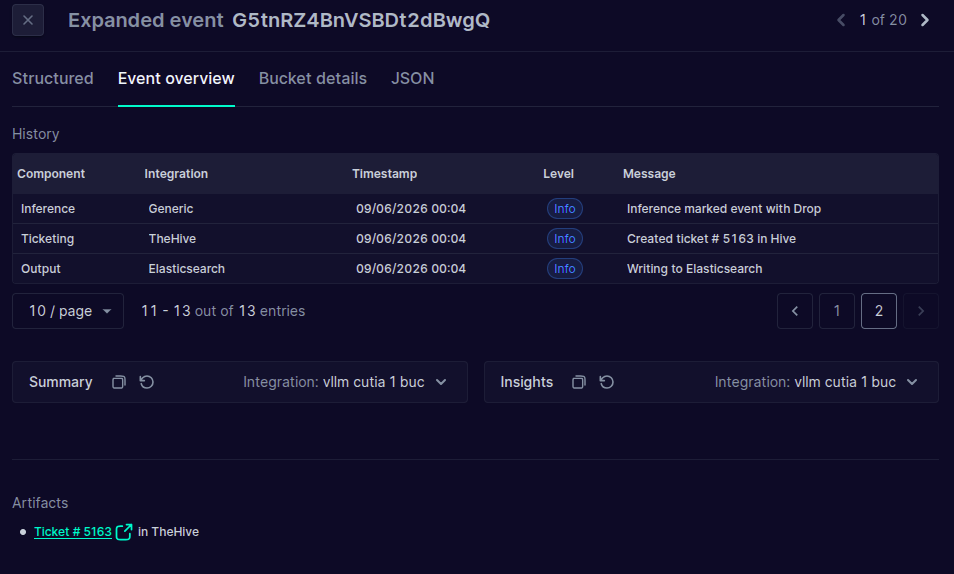
- Ingest a new record (or reprocess an existing one) with a decision matching the candidate labels, then navigate to the job's Event Explorer and expand the event. The Event overview history shows the Ticketing log entry (
Created ticket # ... in Hive) and, under Artifacts, a link back to the newly created case:
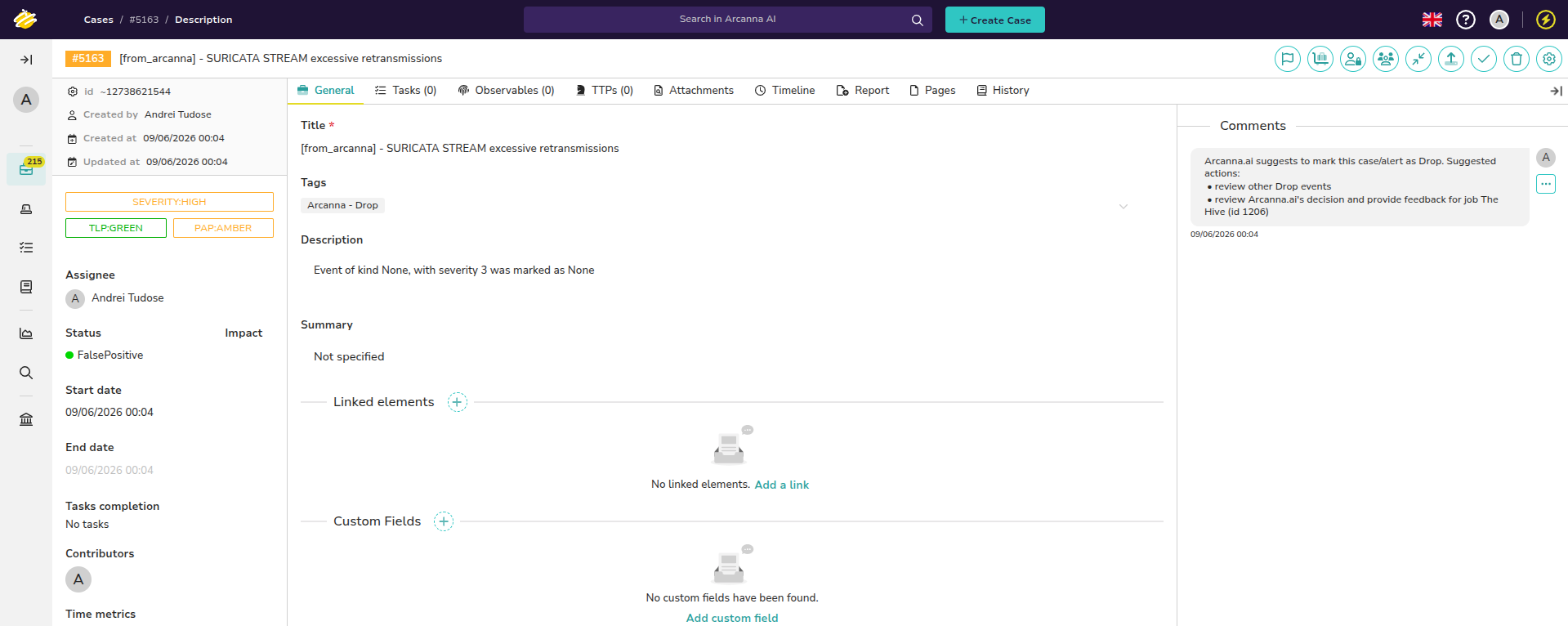
- Open the case in TheHive to review it. The title is built from the Ticket identifier caption and Case title field, the description is rendered from the Case template, the severity is mapped from the Severity field, and the case is tagged with
Arcanna - <decision label>: